How to Install, Set Up, Buy & Swap Crypto: A Complete Wallet Guide
Getting started with a crypto wallet can feel intimidating, especially if it is your first time. Terms like “seed phrase,” “private key,” and “gas fee” get thrown around without much explanation, and the consequences of making a mistake feel high.
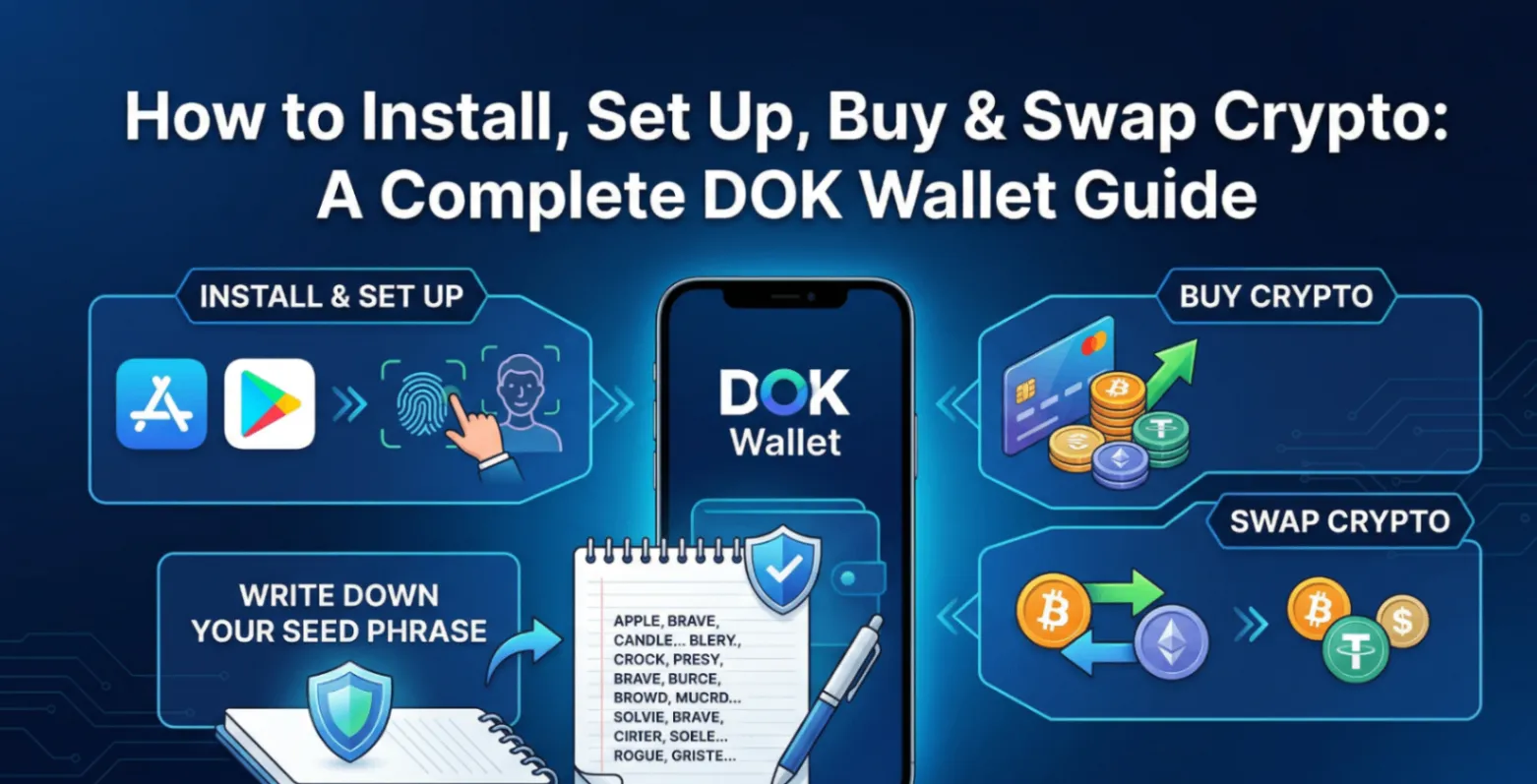
The truth is that setting up a non-custodial wallet is simpler than it appears. This guide walks you through every step of getting started with DOK Wallet — a free, non-custodial, open-source wallet available on iOS and Android. By the end, you will know how to install the app, secure your wallet, buy your first crypto, and swap between assets, all within a single interface.
Let’s go through it step by step.
Before You Begin: A Note on Security
The most important thing to understand before creating a non-custodial wallet is that you — and only you — are responsible for your funds. There is no password reset button, no customer support team that can recover your account, and no company holding a backup of your keys.
This is what “non-custodial” means in practice: full ownership and full responsibility. The good news is that the system is straightforward once you understand it. Everything depends on one thing: your seed phrase.
A seed phrase is a sequence of 12 or 24 randomly generated words that serves as the master key to your wallet. Anyone who has your seed phrase has access to all your funds. If you lose it and also lose your device, your funds are unrecoverable. Keep it safe, and everything else is manageable.
Step 1: Download and Install DOK Wallet
DOK Wallet is available for free on both iOS (Apple App Store) and Android (Google Play Store). The installation process is the same as any other mobile app.
How to install:
- Open the App Store (iPhone) or Google Play Store (Android) on your device
- Search for “DOK Wallet”
- Tap “Get” or “Install” and wait for the download to complete
- Open the app once installation is finished
Only download DOK Wallet from the official app stores. Avoid downloading wallet apps from third-party websites or links, as these may be fraudulent.
Step 2: Create Your Wallet
When you open DOK Wallet for the first time, you will be given two options: create a new wallet or import an existing one. If you are new to DOK Wallet, choose “Create New Wallet.”
The setup process:
- Tap “Create New Wallet” on the welcome screen
- The app will generate a unique seed phrase for you — a sequence of 12 or 24 words
- Write down the seed phrase on paper, in order, exactly as shown
- Store it somewhere safe — a drawer, safe, or any secure physical location
- Complete the verification step, where you will be asked to confirm a few words from your phrase to ensure you have recorded it correctly
- Set up your PIN or biometric lock for daily app access
Critical rules for your seed phrase:
- Never photograph your seed phrase or store it in any app, cloud service, or digital document
- Never share it with anyone — not a support agent, not a friend, not a website that asks for it
- Consider making two physical copies and storing them in separate secure locations
- If someone claims to need your seed phrase to “help you,” they are attempting to steal your funds
Step 3: Receive Crypto (Your Wallet Address)
Before you can buy or receive crypto, it helps to understand how your wallet address works. Each cryptocurrency in your wallet has its own address — a unique string of letters and numbers that works like a bank account number. You share this address with whoever is sending you crypto, or use it when withdrawing from an exchange.
How to find your receive address:
- Open DOK Wallet and select the asset you want to receive (for example, Bitcoin or Ethereum)
- Tap “Receive”
- Your wallet address will be displayed as both text and a QR code
- Share the address or QR code with the sender, or use it to withdraw from an exchange
Always double-check the first and last few characters of an address before sharing or using it. Never send Bitcoin to an Ethereum address or vice versa — each chain has its own format.
Step 4: Buy Crypto Directly in the App
One of DOK Wallet’s key features is the ability to buy cryptocurrency directly within the app, without visiting a separate exchange. This is made possible through integrated third-party provider options that allow you to purchase crypto using a card or bank transfer.
How to buy crypto in DOK Wallet:
- From the main screen, select the asset you want to purchase
- Tap “Buy”
- Choose your preferred purchase provider from the options available
- Enter the amount you want to spend
- Follow the provider’s payment flow to complete the purchase
- Your crypto will arrive in your DOK Wallet once the transaction is confirmed
Step 5: Swap Crypto Within the Wallet
Swapping lets you convert one cryptocurrency into another without leaving DOK Wallet. For example, you might want to convert some Ethereum into a specific ERC-20 token, or swap a token back into ETH. The swap feature connects to decentralised liquidity sources and executes the exchange at current market rates.
How to swap crypto in DOK Wallet:
- From the main screen, tap “Swap”
- Select the asset you want to swap from (for example, ETH)
- Select the asset you want to receive (for example, an ERC-20 token)
- Enter the amount you want to swap
- Review the exchange rate and estimated fees before confirming
- Tap “Confirm Swap” to execute the transaction
Swaps on Ethereum and its tokens involve gas fees — small amounts of ETH paid to the network to process the transaction. Fee amounts vary with network congestion and are always shown to you before you confirm.
Step 6: Send Crypto to Another Wallet
Sending crypto from DOK Wallet to another address is straightforward, but it requires careful attention. Blockchain transactions are irreversible — once sent, they cannot be cancelled or refunded.
How to send crypto:
- Select the asset you want to send
- Tap “Send”
- Enter the recipient’s wallet address, or scan their QR code
- Enter the amount to send
- Review the transaction details, including the network fee
- Confirm the transaction
Importing an Existing Wallet
If you already have a non-custodial wallet elsewhere and want to access it through DOK Wallet, you can import it using your existing seed phrase.
- Open DOK Wallet and select “Import Wallet” on the welcome screen
- Enter your seed phrase in the correct order
- Your wallet and all associated assets will be restored
Frequently Asked Questions
Is DOK Wallet free?
Yes, DOK Wallet is free to download and use. Network fees (such as Bitcoin transaction fees or Ethereum gas fees) are paid to the respective blockchains, not to DOK Wallet.
What if I forget my PIN?
If you forget your PIN, you can reset it by restoring your wallet using your seed phrase. This is another reason why keeping your seed phrase safe is so important.
Can I use DOK Wallet on multiple devices?
Yes. Install DOK Wallet on any compatible iOS or Android device and import your wallet using your seed phrase. Your assets will be immediately accessible on the new device.
How long does it take to buy crypto through the app?
Purchase times vary depending on the provider and payment method you choose. Card purchases are often processed within minutes, while bank transfers may take longer.
What is a gas fee and do I have to pay it?
Gas fees are small amounts of ETH paid to the Ethereum network to process transactions. They are required for all Ethereum and ERC-20 token transactions and are not collected by DOK Wallet.
Start Your Crypto Journey Today
Setting up a crypto wallet is the first and most important step toward genuine ownership of your digital assets. Download DOK Wallet for free on iOS or Android, follow the steps in this guide, and you will be ready to buy, swap, send, and receive crypto — all from a single secure app that keeps your keys in your hands.