
DokWallet as a Crypto Wallet iOS App: Setup, Features, and Tips
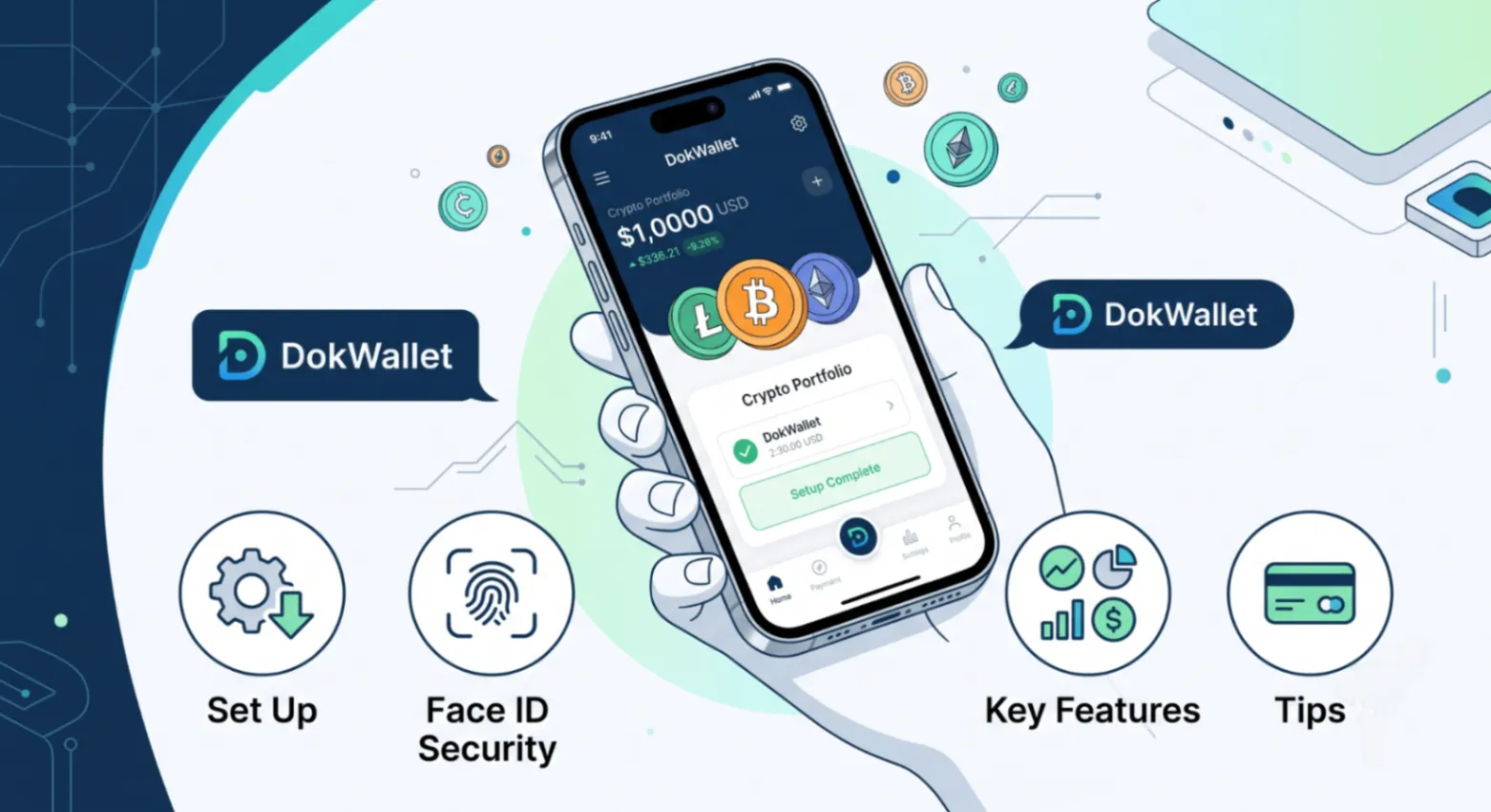
iPhone users looking for a reliable crypto wallet iOS app face a slightly different landscape than Android users, largely because Apple’s App Store enforces stricter review requirements for crypto-related applications. This works in users’ favor, since it tends to filter out less transparent or poorly maintained wallet apps, but it also means iOS users benefit from choosing a wallet genuinely built with Apple’s ecosystem in mind, rather than a cross-platform app with a secondary iOS experience. This guide covers everything iPhone users need to know about setting up and getting the most out of DokWallet on iOS.
Why iOS Optimization Matters for a Crypto Wallet
Apple’s platform conventions around biometric security, app sandboxing, and user privacy create both opportunities and constraints for wallet developers. A wallet that’s genuinely optimized for iOS takes advantage of Face ID for fast, secure app access, respects iOS interface conventions for a familiar user experience, and maintains consistent compatibility with Apple’s regular software updates. DokWallet has been built with these considerations front and center, positioning it as a strong option for anyone specifically searching for the best mobile crypto wallet within the Apple ecosystem.
Setting Up DokWallet on iPhone: Step by Step
Step 1: Download From the Official App Store Listing
Always download DokWallet directly from the official Apple App Store listing. Avoid any links shared through unsolicited messages, social media ads promising unrealistic returns, or third-party app repositories, all of which are common vectors for fake wallet apps designed to steal funds.
Step 2: Create a New Wallet
Open the app and choose to create a new wallet rather than importing an existing one, unless you’re specifically migrating from another compatible wallet. DokWallet will generate a new set of private keys directly on your device.
Step 3: Back Up Your Recovery Phrase Immediately
Before doing anything else, write down your recovery phrase on paper and store it securely offline. This single step is the most important part of the entire setup process, and DokWallet requires confirmation that you’ve completed it before granting full access to the wallet.
Step 4: Enable Face ID
In the app’s security settings, enable Face ID for quick, secure access to your wallet. This adds a meaningful layer of protection beyond your device’s standard passcode, particularly useful for a mobile-first non-custodial wallet you’ll likely open frequently.
Step 5: Fund Your Wallet and Explore Features
Once set up, fund your wallet and explore DokWallet’s multi-chain dashboard, swap functionality, and payment features at your own pace, starting with smaller amounts as you familiarize yourself with the interface.
Making the Most of DokWallet’s iOS Widgets and Convenience Features
Beyond core wallet functionality, iOS-native crypto apps have increasingly embraced platform conveniences that reduce friction for frequent users. A well-integrated iOS wallet lets you check balances at a glance without fully opening the app, respond quickly to time-sensitive transaction approvals through notification actions, and rely on the operating system’s own security layer, Face ID and device passcode together, as a consistent gatekeeper for sensitive actions. These conveniences matter more than they might initially seem, since a wallet you find genuinely easy to check and use day-to-day is one you’re more likely to manage carefully and consistently, compared to an app you avoid opening because the experience feels clunky or slow.
Comparing DokWallet’s iOS Experience to Web-Based Alternatives
Some crypto wallets are primarily browser-extension or web-based, requiring users to access their funds through a desktop browser rather than a dedicated mobile app. While this approach has its own advantages for certain DeFi power users, it introduces friction for anyone who wants to check balances or send a quick payment while away from a computer. A dedicated iOS app like DokWallet removes this friction entirely, putting the full range of wallet functionality directly in your pocket, secured by the same biometric protections you already rely on for banking and other sensitive apps on your iPhone.
iOS-Specific Features Worth Knowing
- Face ID integration provides fast, secure authentication for opening the app and confirming sensitive actions like transaction approvals, without needing to type a PIN every time.
- iOS notification support can alert you to incoming transactions or important account activity, helping you stay on top of wallet activity without needing to check the app constantly.
- Widget and Shortcuts compatibility, where supported, can offer quick balance checks or shortcuts to common actions directly from your iPhone’s home screen, streamlining everyday use.
- Seamless updates through the App Store, ensuring you’re always running the latest security patches and feature updates without needing to manually check for new versions.
Using DokWallet’s Multi-Chain and Payment Features on iOS
The core functionality covered throughout DokWallet’s broader feature set, including multi-chain support, cross-chain transfers, and crypto payment functionality, is fully available within the iOS app, optimized for touch-based interaction and Apple’s design conventions. This means iPhone users don’t sacrifice any core functionality compared to other platforms, while gaining the specific security and usability benefits of a genuinely iOS-native experience.
iOS Security Best Practices Specific to Crypto Wallets
While general crypto wallet security best practices apply across all platforms, a few considerations are particularly relevant to iPhone users:
- Keep iOS updated to the latest version, since Apple regularly patches security vulnerabilities that could otherwise be exploited.
- Review app permissions periodically in your iPhone’s privacy settings, ensuring DokWallet and other apps only have access to what’s genuinely necessary.
- Avoid jailbreaking your device if you plan to store meaningful crypto holdings, since jailbreaking removes several of iOS’s built-in security protections.
- Use iCloud Keychain cautiously for general passwords, but never store your wallet recovery phrase within any cloud-synced service, including Apple’s own ecosystem tools.
Troubleshooting Common iOS Wallet Issues
- App won’t open after an iOS update. Check the App Store for a pending DokWallet update, since major iOS updates occasionally require a corresponding app update for full compatibility.
- Face ID isn’t working within the app. Confirm Face ID is enabled both at the iOS system level and within DokWallet’s specific security settings, since both need to be active for biometric authentication to function.
- Transactions appear delayed. This is typically related to network congestion on the specific blockchain being used, rather than an issue with the iOS app itself. Check the transaction status on a public block explorer for confirmation.
- Biometric prompts appear more often than expected. iOS may periodically require passcode re-entry alongside Face ID for security-sensitive actions, particularly after a system update or extended period of inactivity. This is a standard iOS security behavior rather than an app-specific issue, and confirming your passcode simply re-establishes the secure session.
Frequently Asked Questions
Is DokWallet available on both iPhone and Android?
Yes. DokWallet is designed with a mobile-first approach and offers a dedicated Android application alongside its iOS app, so users aren’t locked into a single platform. The Android app carries the same core multi-chain, cross-chain, and payment functionality covered throughout this guide, with security features like biometric unlock adapted to Android’s conventions, while the iOS app benefits from the platform-specific optimizations, like Face ID integration, detailed above.
Does using DokWallet on iOS limit any multi-chain functionality?
No, the full multi-chain and cross-chain feature set is available on iOS, with the interface optimized specifically for iPhone’s screen size and interaction patterns.
Can I restore my DokWallet on a new iPhone if I upgrade devices?
Yes, as long as you have your recovery phrase securely backed up, you can restore full wallet access on a new iPhone by reinstalling the app and choosing the import option during setup.
Final Thoughts
For iPhone users, choosing a crypto wallet iOS app built specifically with Apple’s ecosystem in mind offers real, practical advantages, from Face ID integration to consistent App Store-reviewed update cycles. DokWallet’s mobile-first, multi-chain design translates cleanly into a polished iOS experience without sacrificing any of the core functionality covered throughout this content series.
To explore DokWallet’s complete feature set beyond iOS-specific details, read our full DokWallet review. And for a deeper look at mobile wallet evaluation more broadly, our guide to the best mobile crypto wallet covers the criteria that matter most across platforms.